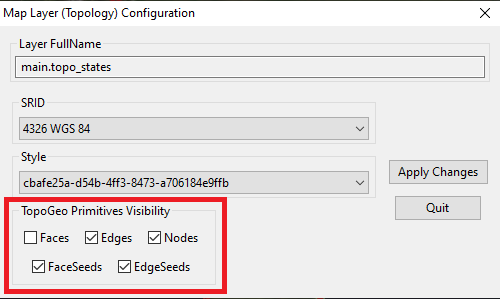
Step #1 - General Introduction
|
In this first contact with Planet Earth we'll simply test the basic rendering capabilities of the Map. You are simply expected to test the pan and zoom tools while switching on and off the various map layers. |
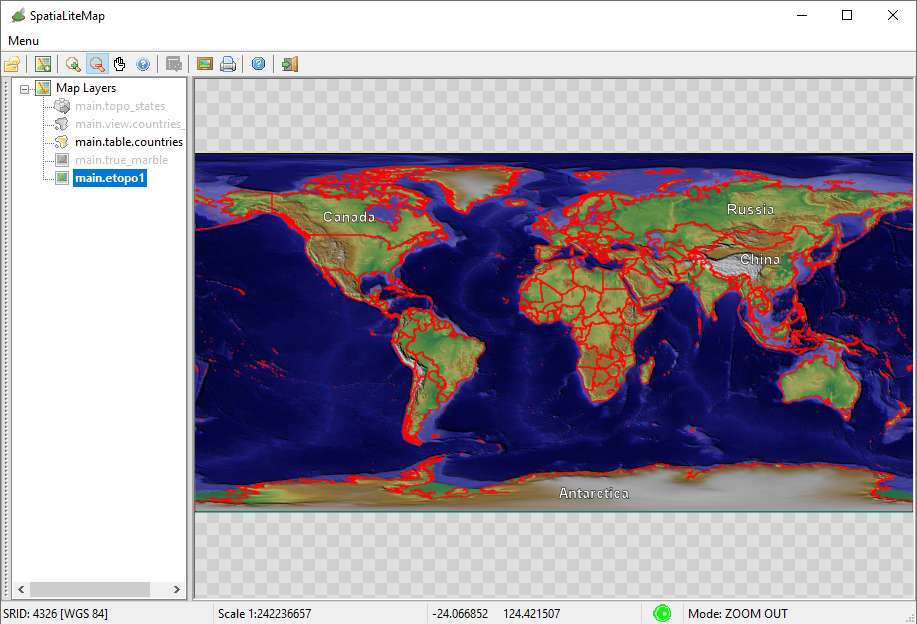
Step #1.1 - Testing the ETOPO1 background
The side figure shows how the Map will be when applying the following layers selection:- ETOPO1 background
- Countries (National Boundaries - red lines) with labels corresponding to each Nation.
- Note: labels will be printed only if they fit inside the MBR of the corresponding Polygon
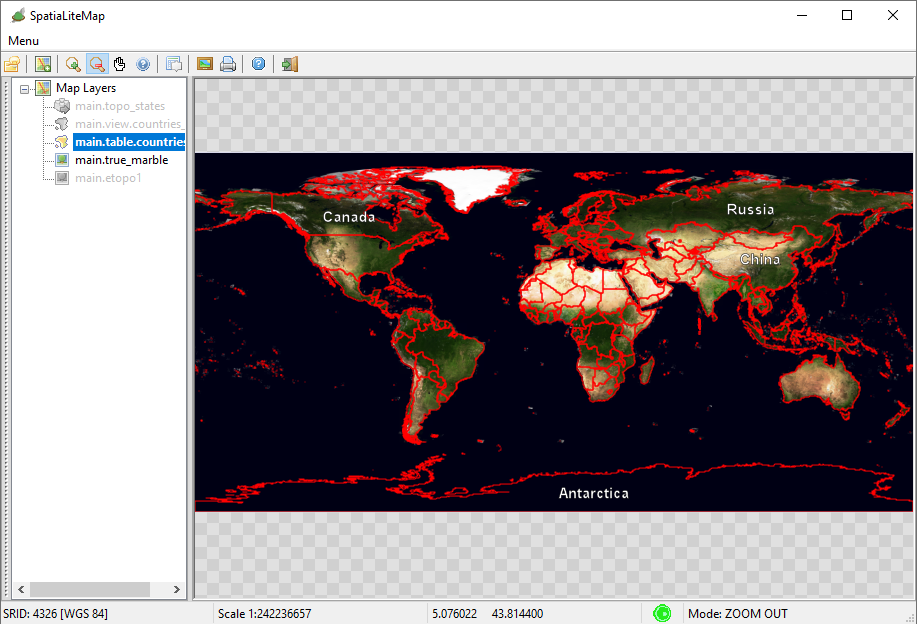
Step #1.2 - Testing the True Marble background
The side figure shows how the Map will be when applying the following layers selection:- True Marble background
- Countries (same as above).
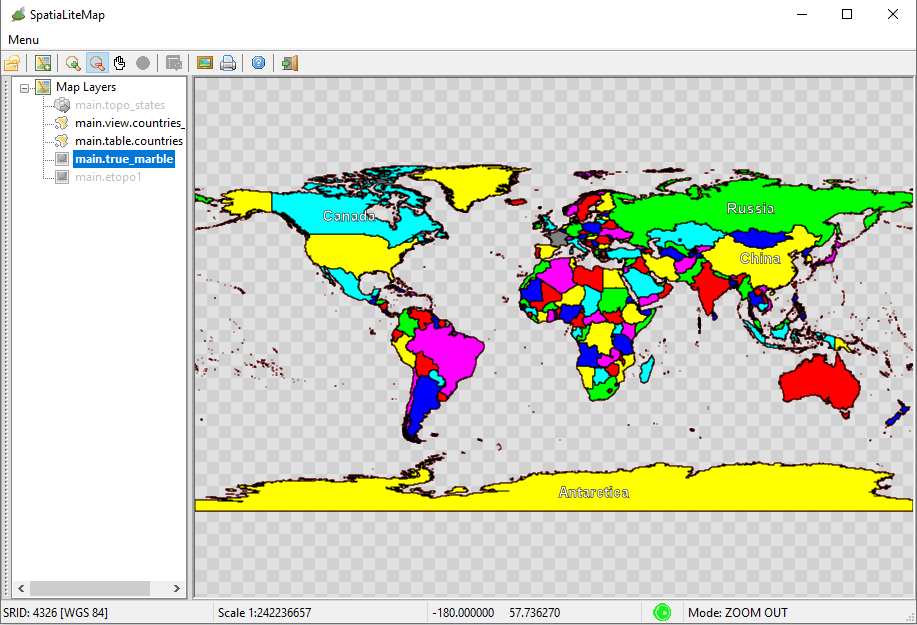
Step #1.3 - Testing the Political Map
The side figure shows how the Map will be when applying the following layers selection:- Countries (view) background
- Note: Each Country is internally filled with a different color, in such a way that confining Nations will never share the same color.
- Countries (same as above).
Step #1.4 - Testing Topology
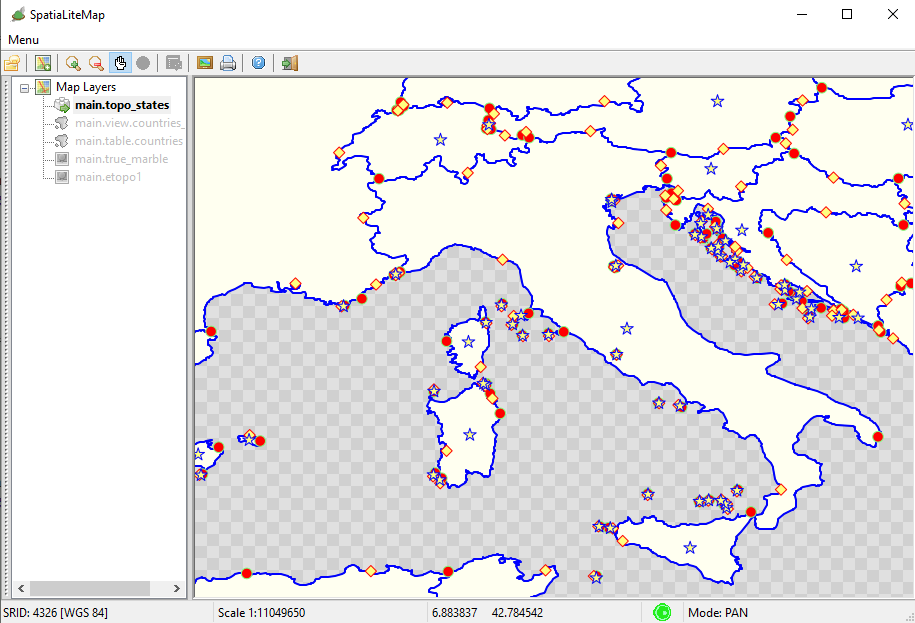
The side figure shows how the Map will be when applying the following layers selection:- topo_states (Topology) alone. All Topology Primitives are represented as follows:
- Nodes: red circles.
- Edges: blue lines.
- Faces: pale yellow polygons.
- Face Seeds: yellow stars.
- Edge Seeds: yellow diamonds.
.
Step #2 - Creating, populating and styling the Raster Coverages
Step #2.1 - Preparing to load the Coverages in MapPanel
Step #2.1 - Preparing to load the Coverages in MapPanel
Step #2.1 - Preparing to load the Coverages in MapPanel
Step #2.1 - Preparing to load the Coverages in MapPanel
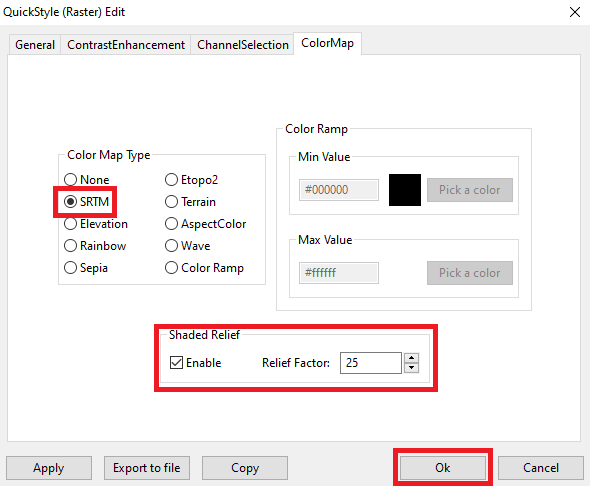
Step #3 - Creating, populating and styling a Vector Coverage based on a Spatial Table
Step #3.1 - Preparing to load the Coverages in MapPanel
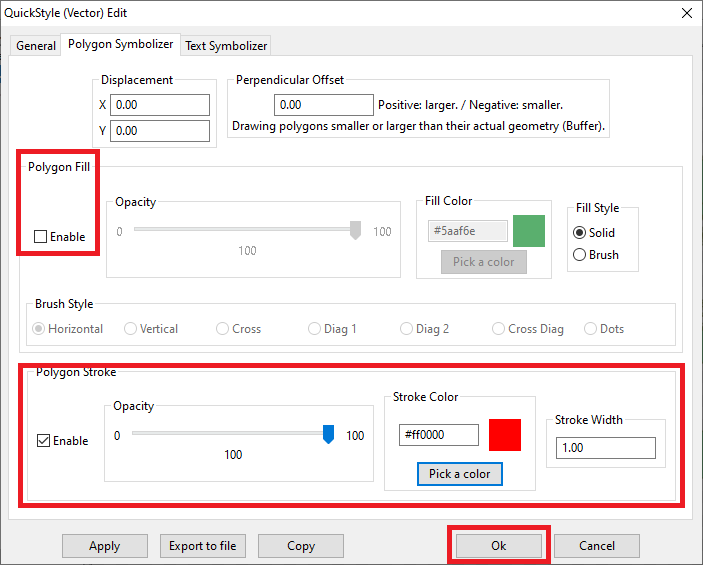
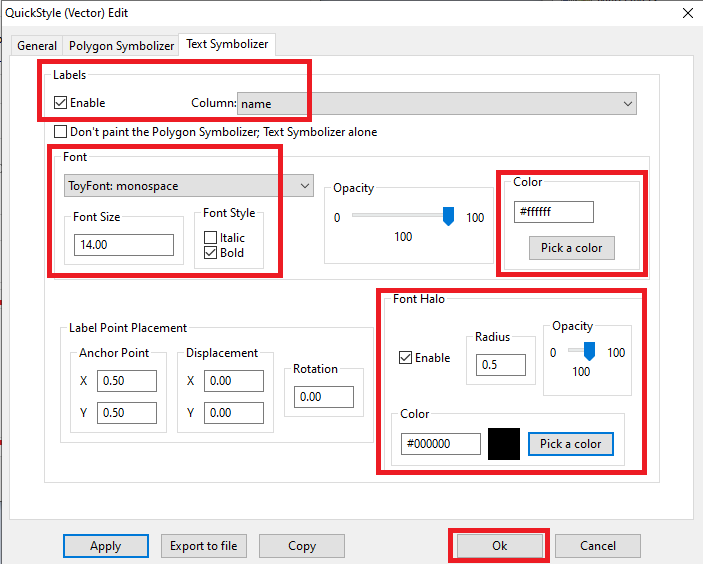
Step #3.2 - Preparing to load the Coverages in MapPanel
Step #4 - Creating, populating and styling a Vector Coverage based on a Spatial View
Step #4.1 - Preparing to load the Coverages in MapPanel
Step #4.2 - Preparing to load the Coverages in MapPanel
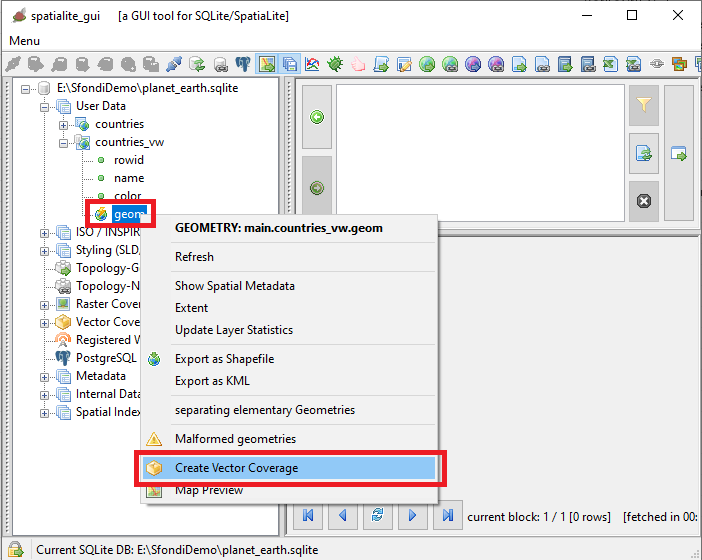
Step #4.3 - Preparing to load the Coverages in MapPanel
    countries_col

        <Title>Countries - Political Map</Title>
        A Style setting its Fill color from a Column Value


        @color@
        1.00


        #000000
        1.00
        1.00
        round
        round
Step #5 - Creating, populating and styling a Vector Coverage based on a Topology
Step #5.1 - Preparing to load the Coverages in MapPanel
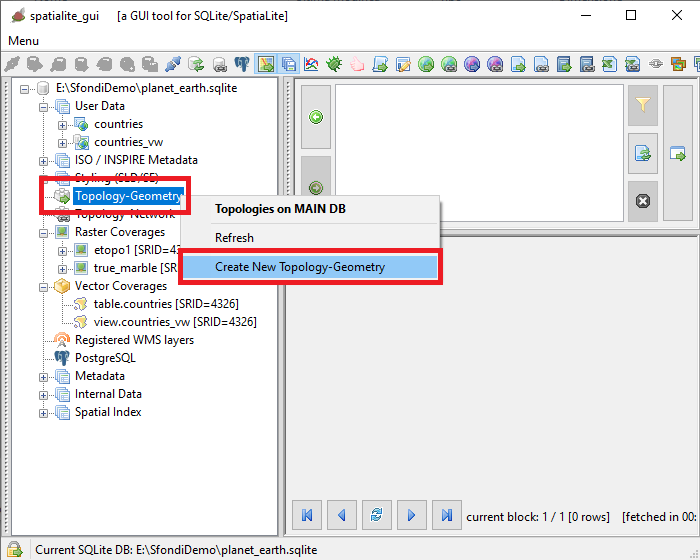
Step #5.2 - Preparing to load the Coverages in MapPanel
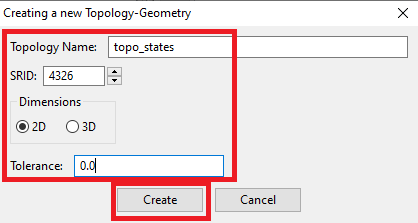
Step #5.3 - Preparing to load the Coverages in MapPanel
Step #5.4 - Preparing to load the Coverages in MapPanel
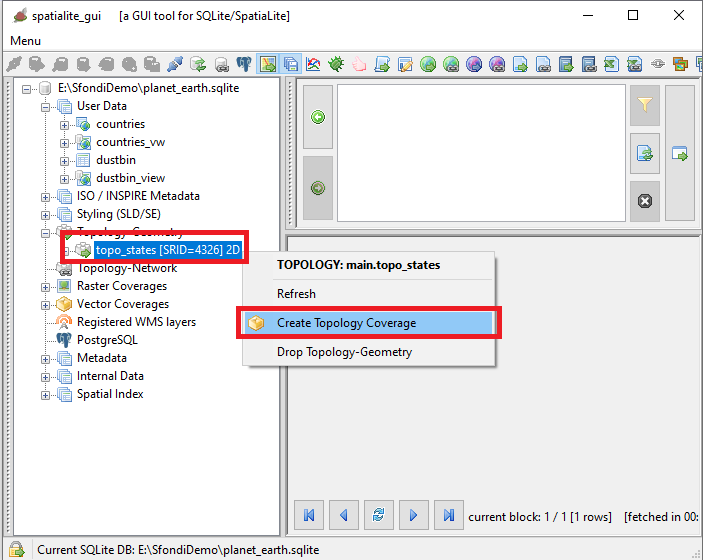
Step #5.5 - Preparing to load the Coverages in MapPanel
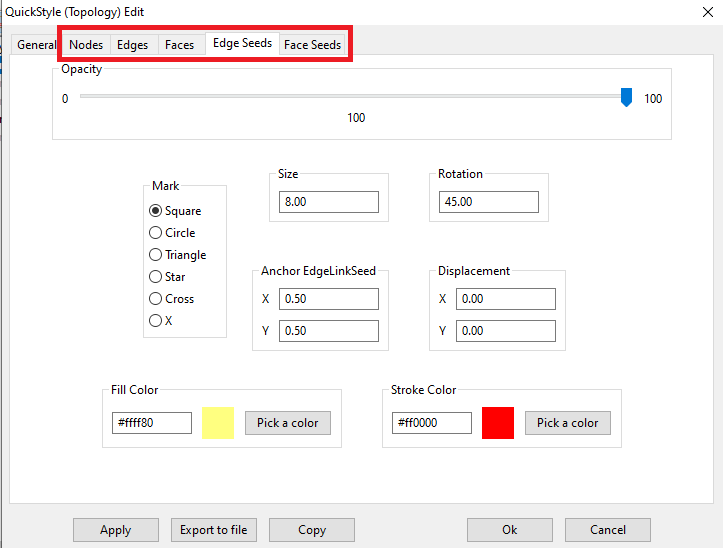
Step #5.6 - Preparing to load the Coverages in MapPanel